How to Speed Up WordPress in 2026: A Safe, Step-by-Step Guide

Quick answer: How to Speed Up WordPress effectively starts with checking real-user Core Web Vitals to identify performance issues. Back up your website, enable full-page caching, optimize your Largest Contentful Paint (LCP) image, and eliminate unnecessary JavaScript. Next, review PHP performance, database efficiency, and hosting limitations. After each optimization, retest your site’s speed and verify that essential features, including forms, logins, and checkouts, work correctly.
This guide provides a reproducible 12-step process, a symptom-based decision table, real published software/CDN prices, and safe verification and rollback paths. It does not claim that HostChoices ran tests on a specific WordPress installation. Prices reflect public US-facing vendor pages checked on October 30, 2026; live checkout totals, tax, and renewals may differ.
How fast should WordPress be? The real targets
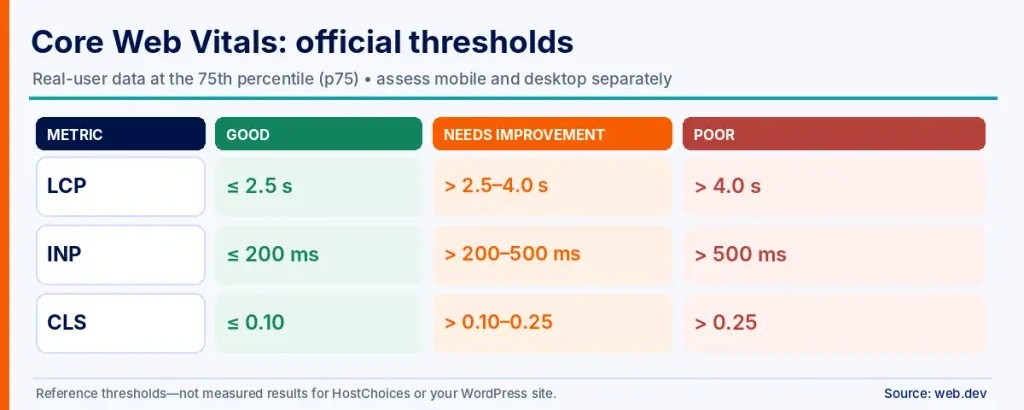
For real-user experience, Google uses the 75th percentile, evaluated separately for mobile and desktop. Passing a synthetic Lighthouse score is not the same as passing field Core Web Vitals. Official thresholds are shown below. Source: web.dev Core Web Vitals thresholds.
| Metric | Good | Needs improvement | Poor |
|---|---|---|---|
| LCP | ≤ 2.5 s | > 2.5–4.0 s | > 4.0 s |
| INP | ≤ 200 ms | > 200–500 ms | > 500 ms |
| CLS | ≤ 0.10 | > 0.10–0.25 | > 0.25 |
To assess a site, compare both the field data (eligible real Chrome users, a rolling 28-day period) and the lab diagnostics from PageSpeed Insights. For pages lacking sufficient field data, say so rather than substituting a Lighthouse score. Chrome UX Report methodology.
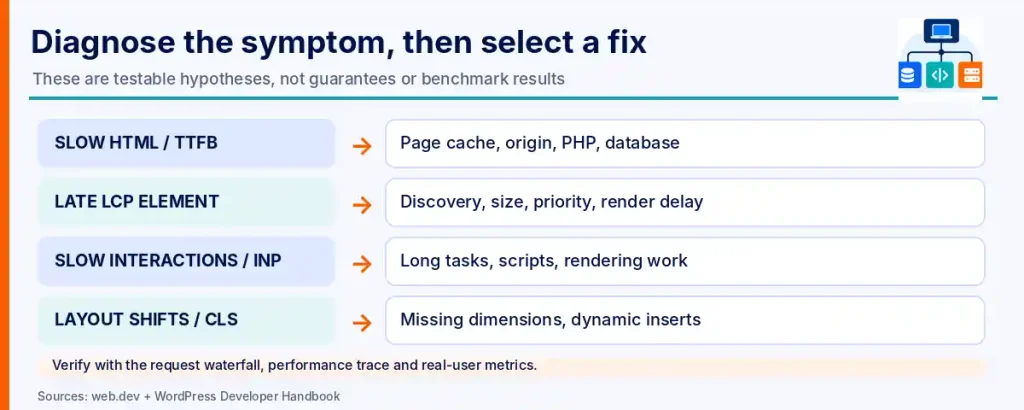
WordPress speed diagnosis: choose your first fix
| Symptom | Likely bottleneck | First action | Evidence to check |
|---|---|---|---|
| Slow initial HTML response | Origin/PHP/database or uncached HTML | Check host cache and resource usage | Network document timing, cache header |
| Main image appears late | LCP image discovery, transfer or render delay | Resize and prioritize hero image | LCP element, waterfall and image requests |
| Clicks and menus lag | JavaScript and long tasks | Remove/defer noncritical scripts | INP field data, performance trace |
| Page jumps on load | Unreserved layout space | Set media and embed dimensions | CLS trace, Web Vitals |
| Only logged-in users are slow | Dynamic PHP and queries | Profile DB/object cache | Slow queries, server timings |
| Distant users are much slower | Geography/network/cache miss | Evaluate CDN and origin region | Matched geographic tests |
Before you change anything: preparation
Estimated active time: 60–120 minutes for the first diagnosis and low-risk changes; complex WooCommerce setups and server migrations can take longer. This is a planning estimate, not a measured promise.
- Record WordPress, PHP, active theme, hosting and cache layers in Tools → Site Health → Info.
- Make a restorable files + database backup. Confirm who can perform the restore and where it is stored.
- Clone high-risk sites to staging; exclude live order data or personal information from careless copies.
- List critical journeys to retest: homepage, posts, menu, search, forms, login, account, and checkout if applicable.
- Capture three representative URLs with the same device, location, cache state, test method and timestamp.
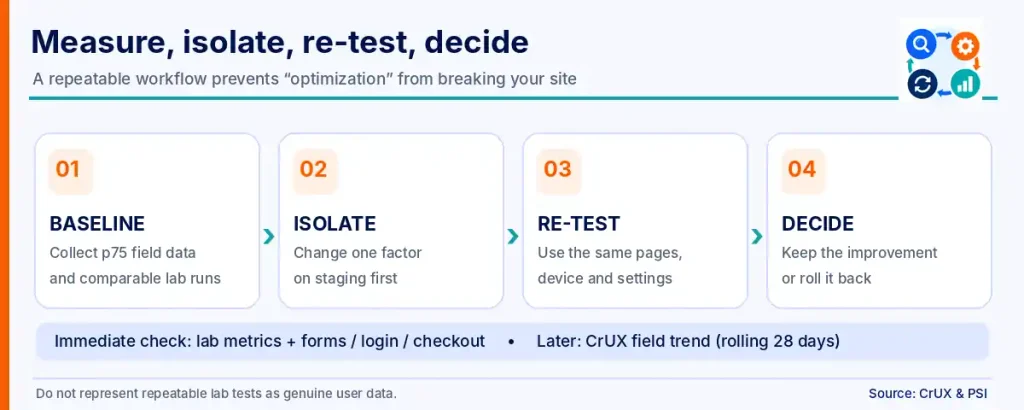
Step 1. Measure mobile and desktop speed correctly
- Open PageSpeed Insights and test the homepage, one typical article, and the most important signup or sales page.
- Record LCP, INP and CLS from field data when available; note page-level versus origin-level results.
- Record the LCP element, document-response delay, render-blocking resources, and largest transferred assets in the lab result.
- Run a few comparable lab tests, and use the median as a practical diagnostic comparison. Do not report synthetic runs as visitor data.
Verify: The report has a timestamp, page URL, mobile/desktop mode, and an evidence-based suspected bottleneck. Rollback: No production change occurs in this step.
Step 2. Make a restore point and use staging for risky work
Before editing cache rules, PHP, theme files, scripts, or the database, create a full backup and verify restore access. Use staging to test JavaScript delays, critical CSS, object-cache changes, and any WooCommerce checkout behavior. A staging clone is not a substitute for fresh production backups.
Verify: Open the backup dashboard, confirm files and DB are included, and document the last successful backup time. Rollback: Restore the previous version or revert the single setting using your host’s documented procedure.
Step 3. Enable one compatible full-page cache
Full-page caching serves ready-made HTML to eligible anonymous visitors, reducing repeated PHP and database work. Start by asking whether your host already includes page caching. Avoid layering two independent cache plugins that make conflicting assumptions about purging and bypass. WordPress caching handbook.
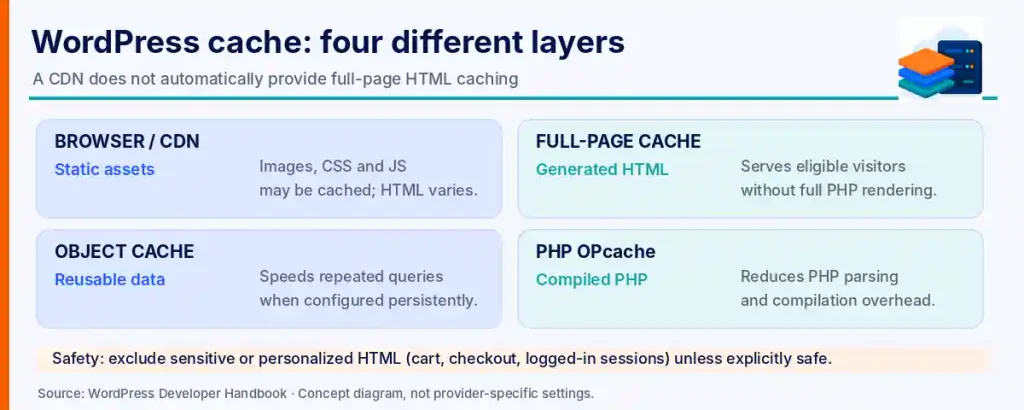
- Identify the current page-cache owner: host, plugin, reverse proxy, or edge cache.
- Enable caching for public anonymous pages only, following the provider’s documentation.
- Exclude account, cart, checkout, logged-in, personalized or session-specific responses as required.
- Purge the cache and load the same eligible URL twice while logged out. Inspect headers such as
Age,CF-Cache-Status,X-CacheorX-LiteSpeed-Cachewhen the platform exposes them.
A cache-related header is platform-specific. Its absence does not prove caching is off. For WooCommerce, confirm dynamic session and checkout exclusions first: WooCommerce performance documentation.
Verify: Anonymous eligible HTML can be served safely and updated content invalidates the cache; no logged-in/session content leaks. Rollback: Disable the new layer and purge it; restore previous bypass rules.
Step 4. Optimize images without slowing the hero
WordPress generates responsive image sizes, but oversized uploads, incorrect layouts, third-party image URLs, and late-discovered LCP images can still cause slow pages. Identify the actual largest visible image before optimizing every image blindly.

The appropriate HTML pattern for a known, critical LCP image is below. In Gutenberg, a normal Image block usually outputs responsive image markup; modify the template only if inspection shows a real issue. Google LCP optimization guidance.
Verify: The hero does not carry loading="lazy", dimensions are set, and Network/LCP diagnostics improve or remain stable. Rollback: Restore original media or remove the changed loading-priority rule.
Step 5. Reduce costly JavaScript and CSS
Use DevTools Performance and the Lighthouse diagnostics to identify long tasks, render-blocking CSS and third-party scripts. Removing a nonessential feature is usually more robust than blindly delaying all scripts. Target unnecessary analytics duplicates, old widgets, unused theme assets, and overbuilt page components.
- Inventory third-party requests, and confirm the business purpose of each tag.
- In staging, disable one nonessential tag or plugin at a time. Check transfer size and main-thread work.
- Defer only scripts that do not have to run before interaction. Test navigation, cookie consent, forms, menus, accessibility, and payments.
- Keep required CSS for the first viewport available early, and load noncritical styling after that where supported.
Verify: Interaction flows work and a performance trace shows fewer blocking tasks or less startup work. Rollback: Remove the last defer/delay setting and purge page/CDN caches.
Step 6. Audit plugins and theme overhead
Open Plugins → Installed Plugins. Document each plugin’s function, critical dependencies and assets; then test deactivating redundant plugins on staging. A plugin count alone does not predict speed—a single heavy builder or tracking integration can matter more than several lightweight extensions. Preserve security, backups, SEO metadata and payment functionality.
Verify: Forms, search, menus, structured data, and custom post types still work, while the relevant measured bottleneck improves. Rollback: Reactivate the plugin or theme and restore its prior settings.
Step 7. Check PHP, the server, and hosting limits
As of October 30, 2026, WordPress.org recommends PHP 8.3 or newer, MariaDB 10.11+ or MySQL 8.0+, and HTTPS. These are platform recommendations, not proof that upgrading a particular server will improve LCP by a fixed amount. Confirm plugin compatibility and back up before any runtime change.
- Record PHP version, memory ceiling, server engine, and errors via Site Health and the host dashboard.
- Ask the host for CPU throttling, PHP worker contention, disk I/O and slow-query evidence if uncached HTML remains slow.
- Confirm OPcache and persistent object caching availability; do not assume WordPress config constants install Redis.
- Compare regional origin latency and availability before deciding to migrate or upgrade.
Verify: Dynamic pages, admin functions, scheduled tasks and email continue to work; server limits are documented. Rollback: Restore the prior supported PHP or host configuration; use backup only if necessary.
Step 8. Trim third-party fonts, ads, video and widgets
Reduce unnecessary font families and weights, preload only truly critical fonts, reserve ad and video slots, and let visitors opt into heavy embeds where appropriate. Keep consent compliance and conversion tracking operational. A slightly higher score is not worth a broken business funnel.
Verify: Important widgets still function, fonts show correctly and CLS does not regress. Rollback: Restore the removed integration or load behavior.
Step 9. Use a CDN only for a demonstrated need
A CDN can deliver cacheable assets closer to users, but geography, origin quality, and caching rules determine the benefit. Cloudflare Free includes a CDN, DNS and SSL, but you should not assume it automatically caches every WordPress HTML document. A WordPress-compatible edge/page-cache configuration requires separate verification. Cloudflare official plans.
Verify: Cache policy, TLS, DNS and representative regional requests behave as expected; logged-in and shopping flows remain private. Rollback: Bypass the new edge cache or restore prior DNS/proxy settings per the vendor documentation.
Step 10. Investigate database pressure and persistent object caching
Persistent object caching (commonly Redis or Memcached) can reduce repeated queries for logged-in or uncached requests, but its usefulness depends on the site’s actual workload. Profile slow queries and inspect autoloaded options before purchasing a Redis plan. WordPress’s optimization handbook suggests keeping autoloaded options generally below 800 KB as a guideline, not a universal hard failure threshold. WordPress performance handbook.
Do not execute unreviewed SQL, mass-delete wp_options rows, or assume object caching fixes uncached CPU saturation.
Verify: Repeat comparable logged-in/admin checks and confirm object-cache invalidation. Rollback: Disable the object-cache drop-in or restore the prior service configuration.
Step 11. Verify real functionality after every change
After each change, purge only the necessary caches and check the exact page templates you measured. Run transactions only in a safe test environment. For ecommerce, check add-to-cart, coupons, login, shipping/tax calculations, payments in test mode and order confirmation.
Verify: No critical regressions and a repeatable lab measurement trend supports the change. Rollback: Undo the most recent change; recheck after clearing the affected cache.
Step 12. Monitor field performance over weeks
Review Google Search Console’s Core Web Vitals report and PageSpeed Insights field data over time. The rolling 28-day CrUX window means that today’s deployment will not instantly replace earlier field observations. Segment by template, mobile/desktop and traffic importance where possible. Do not promise a specific ranking uplift from any single speed intervention.
Verify: A dated changelog and subsequent eligible real-user data show whether the intervention helped. Rollback: If field data deteriorate while functionality or site metrics also worsen, investigate and revert the relevant change.
WordPress troubleshooting guide: which change belongs to which problem?
| Observed bottleneck | Check | Best first candidate | Risk if misapplied |
|---|---|---|---|
| LCP is poor | LCP element, TTFB and request waterfall | Hero fetch priority or full-page cache | Lazy loading or preload bloat |
| INP is poor | Long tasks and third parties | Remove/delay unnecessary JS | Broken events/forms |
| CLS is poor | Layout shifts from images/ads/fonts | Reserve stable dimensions | Extra whitespace |
| Only uncached pages are slow | PHP workers, DB traces | Hosting/object cache optimization | Added complexity without benefit |
| Far-away visitors are slow | Origin proximity and cache hit ratios | CDN/region review | Incorrect HTML personalization |
How much does WordPress speed optimization cost in 2026?
You can start at $0 in added software fees if your existing host offers appropriate caching and you use free tools. Paying for a plugin or CDN should follow a specific need—not precede diagnosis. The figures below are public US-facing advertised prices seen on the official vendor sites on October 30, 2026. Taxes, promotional eligibility, checkout totals, optional services and future renewals are not included unless explicitly stated.
| Product / scope | Published US price | Billing and key constraint | Source |
|---|---|---|---|
| WP Super Cache — page caching | Free plugin | Public page cache; test bypass rules | WordPress.org |
| LiteSpeed Cache — plugin | Free plugin | Server-level page cache needs compatible LiteSpeed/QUIC.cloud stack | WordPress.org |
| Cloudflare Free — CDN/DNS | $0/mo | Does not by itself guarantee WordPress HTML edge caching | Cloudflare pricing |
| Cloudflare Pro — paid plan | $20/mo annual billing; $25/mo monthly billing | Annual billing equivalent $240/year; plan scope differs from cache-plugin scope | Cloudflare pricing |
| Perfmatters Personal — 1 site | $29.95/year | Annual renewals; official page states 15% renewal discount | Perfmatters pricing |
| WP Rocket Single — 1 site | $4/mo equivalent in current one-year first-year promotion | Billed annually; $48 implied first-year total before taxes; renewal unverified | WP Rocket pricing |
| Imagify Growth — images | $4.99/mo annual billing or $5.99/mo monthly billing | 500 MB/month allowance; annual equivalent $59.88 | Imagify pricing |
Price integrity: WP Rocket publicly shows promotional per-month equivalents and says the first-year rate can differ from renewal; we could not verify a logged-in renewal checkout. Its 3-year offer is billed upfront and should not be confused with a monthly subscription. Perfmatters’s stated 15% renewal discount depends on its price and policy remaining unchanged. Confirm every final charge before purchase.
Real cost calculations: 12 months and 36 months
These calculations use verified published input prices and transparent assumptions; they are not checkout invoices or future price guarantees.
| Scenario | 12-month math | 36-month math | Caveat |
|---|---|---|---|
| Cloudflare Pro, annual billing | 12 × $20 = $240 | 36 × $20 = $720 | Assumes unchanged pricing and three annual commitments |
| Cloudflare Pro, monthly billing | 12 × $25 = $300 | 36 × $25 = $900 | Assumes fixed monthly rate |
| Imagify Growth, annual billing | 12 × $4.99 = $59.88 | 36 × $4.99 = $179.64 | Assumes unchanged price, usage within monthly allowance |
| Perfmatters, 1 site | $29.95 first year | ≈ $80.87 modeled | Year 2 and 3 calculated at 15% discount on unchanged $29.95 list |
| WP Rocket Single, current 1-year promo | 12 × $4 = $48 advertised equivalent | Not verifiable from the promotional first-year price | Renewal amount must be checked separately |
At the listed rates, Cloudflare Pro saves $60 per 12 months under annual rather than monthly billing ($300 − $240), assuming identical plan functionality and no change to pricing. That difference alone does not justify Pro for a low-traffic WordPress blog: measure whether you need its paid features.
Which setup makes sense for your WordPress site?
| Site profile | First choice | When paid software is justified |
|---|---|---|
| New personal blog | Existing host cache + free PSI + image best practices | Only after a measured limitation remains |
| Editorial/affiliate site | One page cache + LCP/image and third-party review | Paid asset/script controls if workload warrants |
| WooCommerce store | Safe cache bypass + staging + PHP/query profiling | Paid stack or stronger hosting after bottleneck proof |
| Global multi-region audience | Page cache + region test + CDN pilot | CDN paid tier if required capabilities save time/risk |
When should you upgrade your hosting instead?
Consider changing hosts only after you have proven repeated uncached origin delays, resource ceilings, persistent PHP worker contention, or unacceptable regional latency that cannot be fixed efficiently. Ask the current host for metrics and remediation options before paying for migration.
- Compare the exact plan class, CPU/PHP limits where disclosed, storage, backup and staging options, server location, migration assistance, refund conditions and technical support.
- Require a clear first-term bill, renewal rate, and 36-month total; domain, email, taxes and add-ons may be separate.
- Do not assume higher hosting prices guarantee a lower LCP without matched real-world measurements.
Related HostChoices research: Best web hosting comparison and Hostinger review. These are editorial next steps, not proof of speed gains. Recheck each linked article’s pricing and any firsthand-testing claims independently.
The fastest wins are not always plugin settings
- Installing overlapping full-page caches without a coherent owner and invalidation strategy.
- Lazy-loading the image most likely to be LCP.
- Delaying checkout, consent, accessibility or form scripts to improve a synthetic score.
- Reporting a single favorable Lighthouse result as real-user Core Web Vitals performance.
- Treating Cloudflare asset caching as proof that personalized HTML is cached safely.
- Upgrading the host without checking whether the slow part is heavy frontend JavaScript.
- Publishing “tested,” guaranteed performance percentages, or fabricated server benchmarks without evidence.
Frequently asked questions
Can WordPress be fast without premium plugins?
Yes. WordPress and hosting caches, correctly sized images, minimal scripts and responsible theme/plugin choices can all be implemented without paid optimization licenses. Verify whether your existing host already includes the relevant functionality.
Is a PageSpeed Insights score of 100 necessary?
No. Prioritize real-user Core Web Vitals, accessibility and conversion-critical user journeys. A single lab score does not establish a faster real-user experience.
Should I use a CDN and a cache plugin together?
They can be complementary when configured correctly: the origin page cache reuses public HTML while a CDN often accelerates static resources. Full-page edge caching requires explicit cache policies, invalidation and safe bypass of personalized pages.
Is Redis useful for every WordPress blog?
No. Persistent object caching is most helpful when repeated uncached application/database work is material. A mostly static blog with effective full-page caching may benefit less.
How long does a speed fix take to appear in field data?
Lab diagnostics may respond quickly after cache warm-up and deployment. CrUX field data summarize a rolling 28-day period, so the published aggregate changes over time.
Does faster WordPress guarantee better Google rankings or AI citations?
No. Performance improves user experience, but Google’s guidance does not promise a ranking or AI Overview placement from an optimization score. Accurate, crawlable, useful content and sound SEO foundations matter. Google AI-search optimization guidance.
Final checklist and recommendation
The priority order for most WordPress publishers is measure → back up → confirm one page cache → improve the true LCP resource → remove nonessential JavaScript → diagnose PHP/queries → verify the site → monitor real visitors. Only pay for additional plugins, a CDN tier or new hosting when the expected benefit addresses an observed constraint.
Source and method note: Technical guidance and thresholds are linked to WordPress, Google/web.dev, Chrome and WooCommerce documentation. Public vendor prices were checked October 30, 2026. No first-party speed tests, WordPress account screenshots, vendor checkout receipts, or affiliate tracking URLs are represented as having been verified.
Affiliate disclosure: HostChoices may earn a commission from qualifying partner links. This guide currently uses editorial links to official sources and includes no verified sponsored tracking links.